To run your own instance of the engine, see readme.md. Once you have the engine open, you'll be presented with a small sample project. By default, the work area in the middle of the screen shows the Code tab.
Run The Sample Project
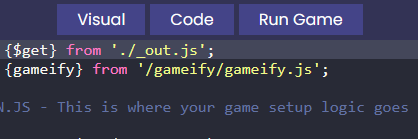
To run your projects, click the Run Game button in the tab bar at the top of the screen. The work area will change to show you a preview of your game.
You can use the W, A, S, D keys to move the player in the sample project.
You'll also notice the Console at the bottom of the screen. You can use the tab in the bottom right to resize the console. This screen shows console logs and other information to help you debug your game. However, you'll need to use the browser console to see stack traces.
Edit the sample project
Click the code tab, or click on main.js in the sidebar to return to the code editor.
Try changing the playerSpeed variable. Then, press Run Game to try the game with your changes.
Next: Editing Engine Objects