Gameify allows you to clone GitHub repositories and connect your github account, so you can push your changes to a github repository. This is useful if you have multiple people working on a project, if you want to keep track of changes, or if you want to import assets from GitHub.
Project setup
Before you can use source control, you'll need to configure your project and set up a git repository.
Create a new project in the engine, or open an existing project. In the sidebar, scroll down to Save, and then next to export, click Source. A file download will start. It should be named something like project_name.zip. Save it somewhere, and extract its contents.
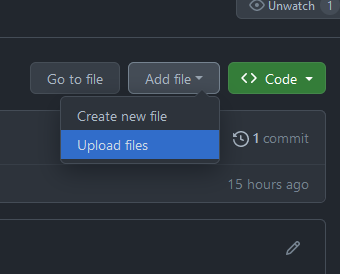
Go to GitHub, and create a new repository. After you've created your repository, select Add file, and then Upload files. (If you know how to use git, you can also use git to add files).
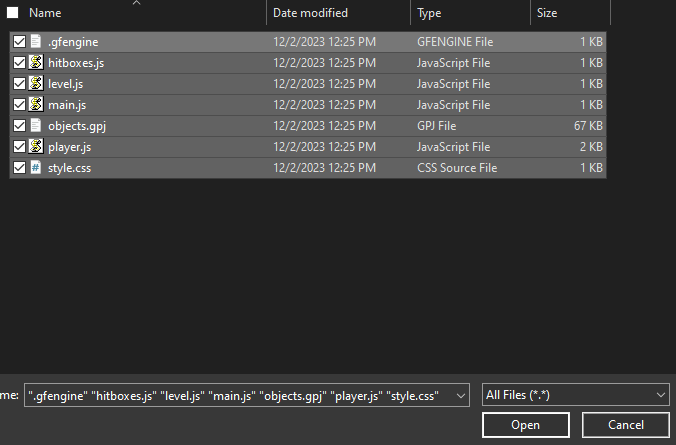
Click on choose your files, then find where you saved the files you downloaded from gameify. Select all of the files, and click Open (This screen might look different if you're not using a windows computer).
You should see all of your files listed in github.Add a message if you'd like (something like "uploaded gameify files"), or leave it blank.
Make sure Commit directly to the main branch is selected, then click Commit changes. Github will upload your files, and then you should see all of your files listed in GitHub.
Connect your GitHub account
Click the Log In button (or your username) in the top right of the editor, or go to your account.
Sign in to your Gameify account, and click on the Manage button next to integrations (or go to your integrations).
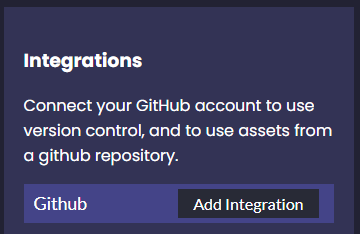
On this page, click Add Integration. This will direct you to GitHub to sign in.
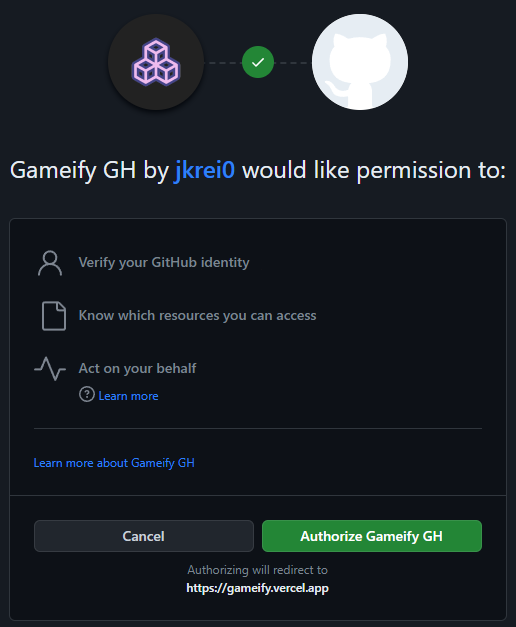
Then select Authorize Gameify GH
Open a project from GitHub
After your account is linked, you can go to your integrations to see a list of repositories you have access to. If you don't see one (or the list is long), you can use the search box to filter the list.
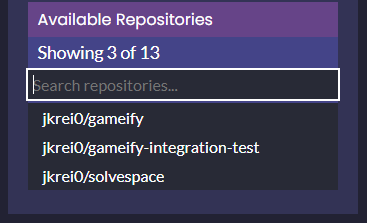
Find the repository that has your project, and you'll be redirected to the editor. Be patient, as it might take a while for it to load.
If you get an error, read Github Errors
Pushing changes to GitHub
After you've made some changes, you can push then to Github. This will create a commit in your repository, and anyone else with access can see your changes.
When you're ready to push your changes, go to the sidebar, scroll down to GitHub, and select Push.
You'll be asked to describe your changes. Write a short summary of what you did (i.e "Added a new level"), and select Ok. If you changed your mind, select Cancel.
If you get an error, read Github Errors
Git diff (file comparison)
If you'd like to compare the changes you've made against what's currently in GitHub, you do so directly from Gameify (however, it is limited to only the main branch). To do so, find GitHub in the sidebar, and click Diff. Wait for this to load, and then a Diff button should appear next to your code files.
Click on any of these buttons to compare versions of your project. Your copy is on the left, and GitHub is on the right, and it will update in real-time as you make changes. You can also see changes made to objects by selecting Diff from above the objects list (although you cannot edit it, and it will not automatically refresh).